

From recorded footage to a finished video with two AI skills
Shorten pauses, add captions and turn your own footage into a vertical video. Two AI skills, with Cursor setup steps, sample requests, costs and privacy considerations.
Avi Moas, Researcher and Editor-in-Chief · Produced with an AI-assisted newsroom

You have recorded an explanation, an interview or a short video. Now you want to shorten long pauses, add captions and make a tall, narrow version for a phone screen. These two skills work with existing footage: video-edit runs separate editing programs, while shorz-mcp lets assistants such as Cursor and Codex operate the Shorz editing application.
A skill is a set of instructions, sometimes with programs and supporting files. The assistant reads it and operates editing tools on the computer. For either route, start with a copy of the footage in a folder your assistant can open. Opening a link in a regular phone chat does not prepare the editing software on your computer.
Below is a Cursor setup route for each skill, followed by a request to use after setup.
video-edit: choose what to change in your video
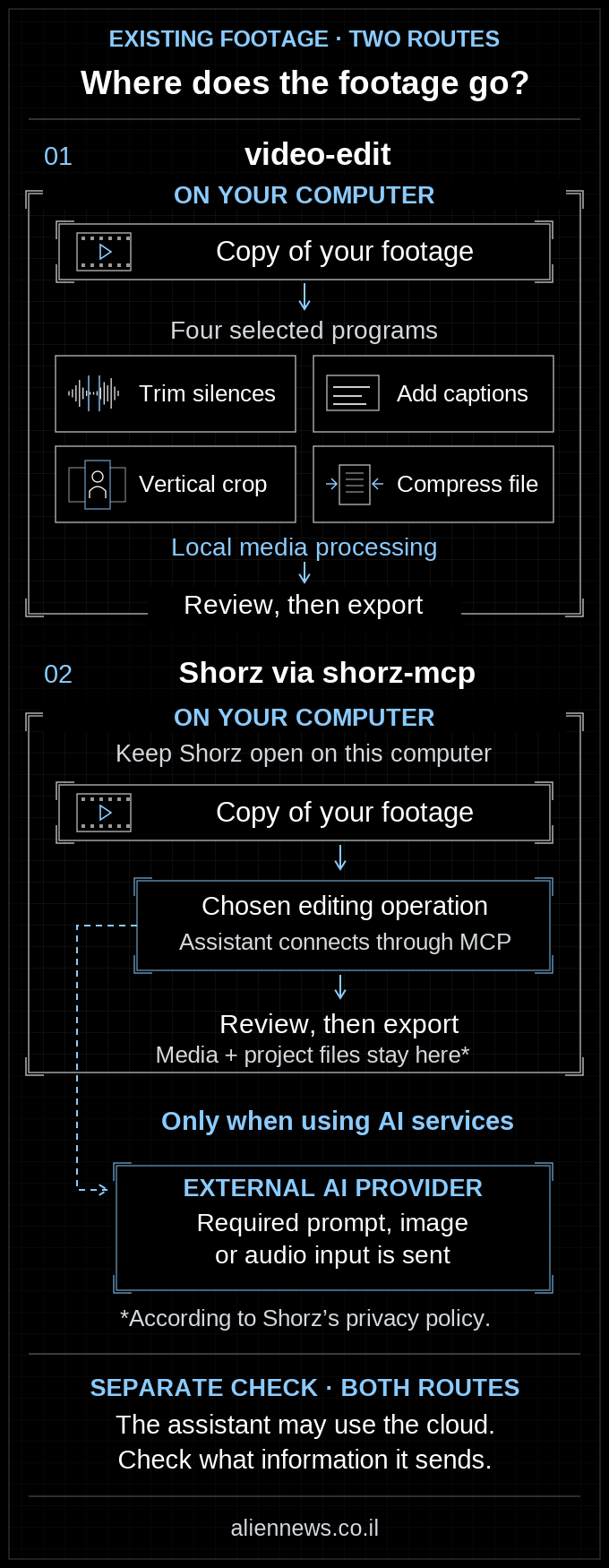
Suppose your recorded explanation has long pauses between sentences. video-edit includes a program that detects speech and trims silences with Silero, another that prepares captions with faster-whisper, and a face-detection program for positioning a vertical crop. A fourth reduces file size with FFmpeg. You can start with one operation and review its output before continuing.
How do you start with Cursor? Open a working folder on your computer containing a copy of the footage. Install the video-edit package in that folder. If Node.js is already installed, open Cursor’s Terminal and run:
npx skills add aiagentwithdhruv/skills --skill video-edit -a cursor
This command installs the skill from its developer’s repository. Read the installation and permission requests before accepting them. Then open an Agent chat in Cursor and ask it to read video-edit and check what is missing for the four programs: silence trimming, captions, vertical cropping and compression. Installing the skill does not install the editing tools. Once those are ready, provide the copy’s filename and paste the request below.
The repository also lists Codex, GitHub Copilot and other assistants. The four programs selected here use Python and local media tools; they do not require an Anthropic API key. This article covers only those programs. The source package also contains other workflows that use external services.
Listen to the joins between sentences, check caption words and timing, and watch the whole vertical version. Face detection does not guarantee that an object you are demonstrating stays in frame. For Hebrew footage, also check text direction and letter display. After compression, make sure the captions remain readable.
Try this request: Read video-edit and use only jump_cut_vad_singlepass.py, auto_captions.py, vertical_crop.py and compress_video.py. First check the requirements and explain what needs preparing on this computer before downloading or installing anything. Then work on a copy of my spoken clip: suggest silence trimming, prepare captions for review and make a vertical 9:16 draft. Keep my face and the object I am showing in frame, and flag moments where both cannot fit. Do not upload the footage or audio to an external service. Explain separately what information the assistant itself sends to the cloud. Keep the original unchanged and leave a draft for review.
Requirements and costs: This setup route needs Cursor and Node.js. Editing requires Python and FFmpeg, plus the packages for each chosen operation: torch for speech detection, faster-whisper for transcription, and OpenCV and NumPy for cropping. The first run may download model files. You do not need the YouTube or upload workflow components for these four operations.
The creator’s installation instructions mainly target macOS. The code also includes software encoding that does not require Apple’s video accelerator; Windows setup may still need adjustments. These four programs process media locally, but Cursor or another assistant may process your request and accessible information in the cloud. The package is MIT-licensed; the assistant’s pricing and terms are separate.
shorz-mcp: give editing instructions to Shorz
Shorz is a video-editing application for Windows and Apple Silicon Macs, such as M1 and newer. The shorz-mcp skill teaches an assistant to operate it through MCP, a connection that exposes the application’s tools. The documentation covers Cursor and Codex as well as Claude. You can request trimming, resizing, captions or an edited draft from existing footage.
How do you start with Cursor? Download Shorz from the company’s website, install it and sign in. Keep Shorz running. Open Connect AI Agent at the top of its window, choose Cursor and review the access being requested. In the same window, choose Install skills now to add the workflow instructions. Reopen Cursor and ask it to check that the Shorz tools are available. Once connected, provide the location of your footage copy and request a draft.
You can also choose Codex in that window. Each route needs access to the running Shorz application on the same computer; a supported connection does not mean every browser chat can operate it.
Check caption timing, wording and framing in the result. A focused correction could be: “The first caption appears before I start speaking. Change only its timing.” Leave publishing until after your review.
Try this request: Use shorz-mcp to prepare a draft in Shorz from my chosen copy of a spoken clip: a vertical 9:16 video with captions for review. First confirm that Shorz is running and the connection works. Show the planned operations, their price or credit use, and the information that would be sent to external services. Wait for my approval before carrying them out. Preserve the original and leave the result for review without publishing.
Requirements and costs: You need Windows 10/11 or an Apple Silicon Mac, Shorz and your chosen assistant. The current documentation lists no Linux version or Intel Mac support. The MCP connection also requires Node.js to be available on your PATH. Connect AI Agent warns if it is missing and shows the correct connector path for manual setup.
The download is free and includes a limited free allowance. Some local editing tools are free; AI operations and other services use paid credits. Operations use your signed-in Shorz account. A personal ElevenLabs key is needed only if you choose to use your own cloned voice through that service.
According to the company’s privacy policy, project files and media stay on the computer, while AI operations send the required input, such as a prompt, image or audio clip, to the external provider. This is the company’s statement. The connected assistant may also use the cloud. The skill files and documentation are MIT-licensed; the Shorz application is proprietary, with separate pricing and terms.
Keep the first attempt simple: a copy of a short spoken clip, one change and a review of the result. For example, add captions and check that they match what was said. You can then shorten pauses, make a vertical version and save the finished video. Keep the original recording separately. If it includes other people, private information or material someone else owns, check that you have permission to use it and send it to your chosen service.
